As music is becoming increasingly difficult to access—yet serves as a wonderful way to uplift one’s mood and enrich one’s outlook on life—I have decided to build my own music library to avoid the high costs often associated with acquiring such music.
Model Selection
After some research, I decided to build a private music library based on the open-source Navidrome project; I created a container on my home lab server using the following command:
incus launch images:ubuntu/26.04 NavidromeStart deployment
We assigned the private IP address 192.168.4.30/24 as the container address, and then executed the following command:
wget https://github.com/navidrome/navidrome/releases/download/v0.64.2/navidrome_0.64.2_linux_amd64.deb
sudo apt install ./navidrome_0.64.2_linux_amd64.debWe need to execute a command like this to actually perform the installation:
dpkg -i navidrome_0.64.2_linux_amd64.deb Next, apt will install Navidrome for us, and then we can run the following command to view the configuration file:
vim /etc/navidrome/navidrome.tomlWe are modifying its content as follows:
DataFolder = "/var/lib/navidrome"
MusicFolder = "/mnt"Start it permanently using the following command:
systemctl enable --now navidromeConfiguring Nginx Reverse Proxy
After installation, we need to set up a reverse proxy to listen on the container’s port 80; the Nginx configuration file is as follows:
server {
	listen 80 default_server;
	listen [::]:80 default_server;

	location / {
		proxy_pass http://127.0.0.1:4533;
	}
}Setting up Incus/LXD containers
To exit the container command line and set up port mapping, we need to perform the following operations:
incus config device add Navidrome data1_music disk source=/mnt/data1/Music path=/mnt/data1/Music
incus config set Navidrome boot.autostart trueUpload music
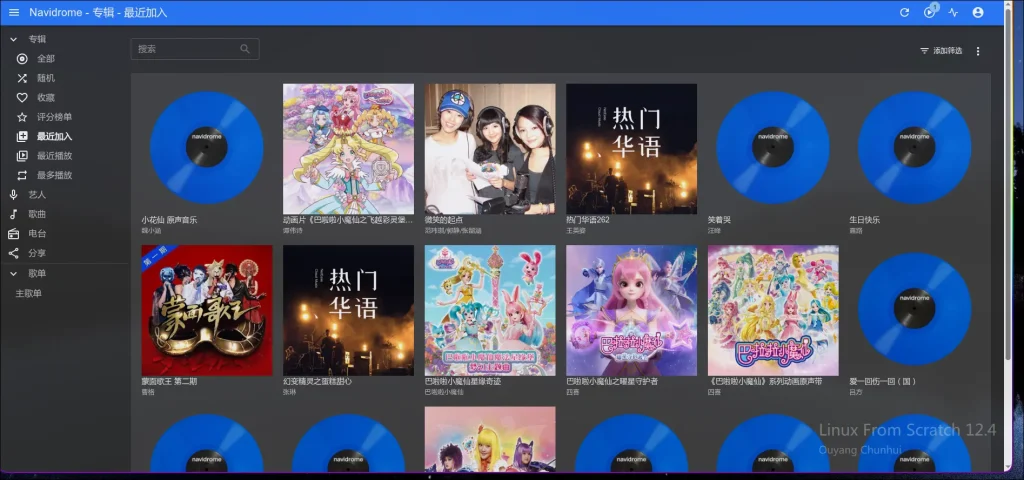
Next, simply upload your music to the /mnt/data1/Music directory on the server, and Navidrome will automatically scan it.
The cost of downloading music
Many apps—including KuGou, QQ Music, and NetEase Cloud Music—offer free music, but access is usually restricted to their respective platforms. To keep costs down while using our own music library, we needed to download and store the raw MP3 or FLAC files. Unfortunately, most of these apps do not provide free MP3 downloads. To minimize costs, I purchased a temporary KuGou VIP subscription and downloaded every track from my library that supported MP3 or FLAC formats; however, over twenty songs remained in an encrypted format. I then found a website capable of decrypting “kgm” files and converting them to MP3: https://kgm.worthsee.com/
Even then, a dozen or so songs remained encrypted. I tried using QQ Music and NetEase, purchasing short-term VIP subscriptions to download the tracks, but I ended up wasting some money on QQ Music because I couldn’t find a way to decrypt its files. Ultimately, however, I managed to download the remaining songs from NetEase Cloud Music. The method for decrypting NetEase “ncm” files to MP3 can be found here: https://ncm.worthsee.com/
The cost to purchase individual tracks outright is around 2 yuan per song. Obviously, paying for downloads from the start isn’t feasible due to the high cost. I continued searching and discovered Migu Music—a music app owned by China Mobile—which offers a vast amount of free music. I will likely prioritize using Migu Music and KuGou Music in the future.
I also considered alternative channels; if all platforms eventually require payment and I choose not to pay, our only remaining option might be to obtain the music files through a recording method.